


Call of Duty: Black Ops 7 has recently been released on several platforms, with PC being most popular. Thanks to the feedback of players, Activision announced several accessibility settings available in the game’s latest update. The update features several new settings and features not seen in the game before, including some returning features from previous games in the series. This plans to give players the help they need to further enjoy the FPS we know and love.
Why is Accessibility in Games Important?
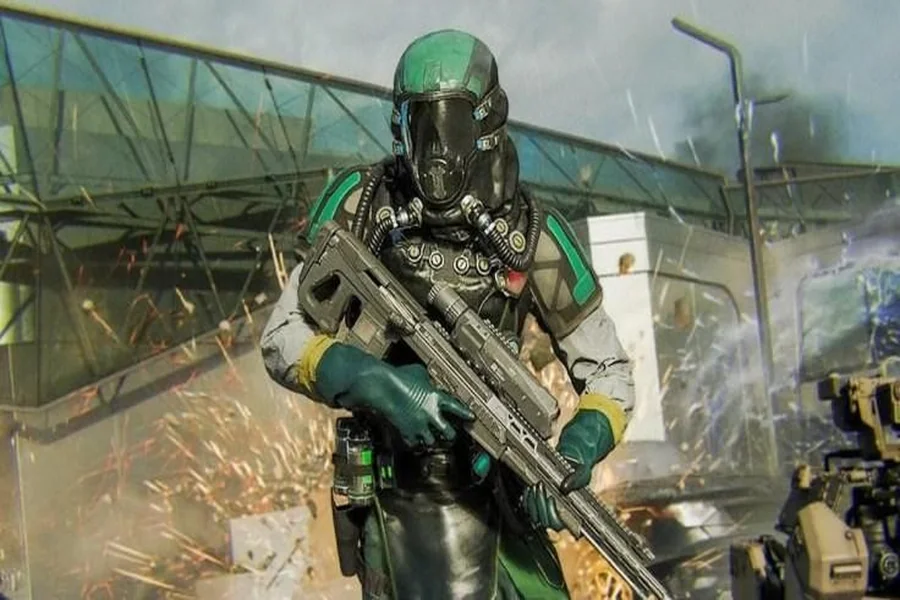
Accessibility updates like these in games are important for players with disabilities or different settings preferences to still enjoy them. Some examples of good accessibility features are adjustable color settings in the UI. This setting helps players that are color blind, and may get confused by the colors of certain HUD appearances. This can even be adjusted for item prompts too! Need some help on the new Black Ops game? Look no further to buy black ops 7 account today.
For FPS games like Call of Duty: Black Ops 7 in particular, there’s a big concern over motion sickness. A shocking number of players avoid FPS games, or require adjustable camera settings for them due to experiencing motion sickness often. This can be due to head-bobbing animations, fast turns, all combined with the immense focus FPS requires. FPS games simulate motion from our perspectives, so it’s natural for some players to experience such sickness due to the trick it has on our brains, making accessibility features absolutely necessary.
The New Advanced Motion Control Settings
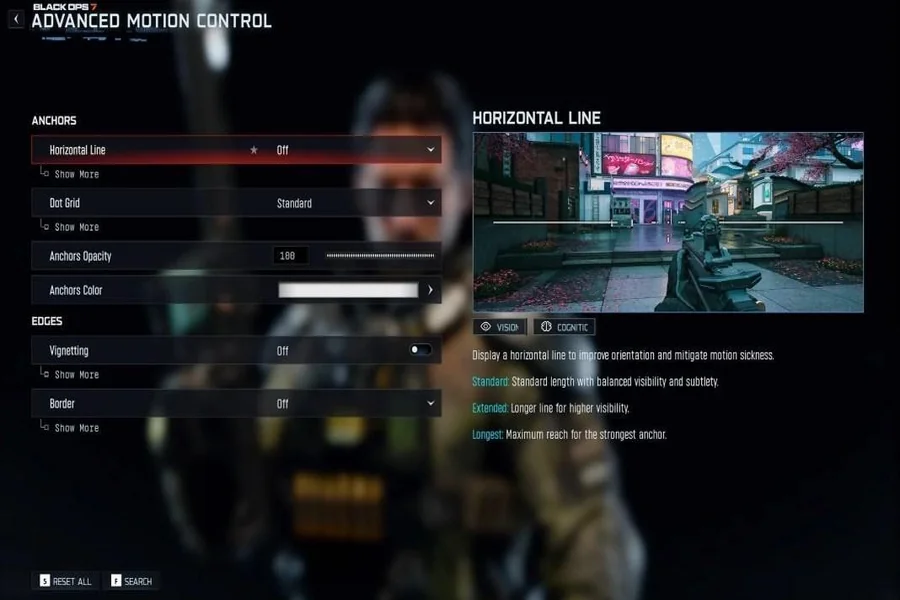
The new Advanced Motion Control settings tab is all about ensuring that players don’t experience motion sickness while playing. Players can enable a Horizontal Line, Dot Grid, Border, or Vignetting, while also being able to adjust the thickness, boldness, and color of each. These settings are meant to create a more obvious focal point for the brain, reducing the chances of motion sickness in the end.
Not only are the lines and grids available to work as a focal point, but they work in keeping your eyes focused despite the quick motions of your character. One of the biggest reasons for motion sickness in FPS games are the quick-movements and motion blurring in the perspective. However, the blurs can also be adjusted or disabled entirely. The grids also give the brain less sense of movement while still keeping the integrity of the fast-paced, adrenaline-rushing gameplay.
High Contrast & Intelligent Movement Customization
Along with the new Advanced Motion Control settings, there are also new contrast visual settings, and intelligent movement customization. By enabling high contrast, it doesn’t increase the quality of your graphics. Instead, it highlights different gameplay elements and key items, NPCs, checkpoints, and others. This helps make your enemies and goals in-game appear clearer, even in foggy or dark environments.
Next is the intelligent movement customization, which is a bit more complicated. In this setting tab, there’s a whole list of options to enable and disable. Here, you can customize a bunch of options, such as deciding whether you’d like some actions to be automatic. For example, you can enable the option to have wall jumps occur whenever you’re facing a wall, running towards one, or on the side of one. This helps make gameplay less focus-intensive on certain actions, especially for those with limited mobility.
Visual Settings
The visual setting customization can help those who are not only visually impaired, but also add to a person’s preferences. For example, when playing online or the campaign, you can adjust how everything and everyone appears on your mini-map. You can also adjust the size and appearance of all text that shows on-screen. This includes during gameplay and cutscenes.
Then there are the crosshairs. This setting is incredibly important for all players, especially the pros. In Call of Duty: Black Ops 7, the crosshair settings are detailed in giving the control to change its size, reticle, and even color. You can even view the crosshair as you change it, and you can also test it out as you go. Finally, there’s also the Arachnophobia settings, which decreases the details on spider-like enemies.
Audio Settings
Finally, there’s the audio accessibility settings for those who have different hearing levels, or prefer headphone usage. For example, there’s the Asymmetrical Hearing Compensation setting. When enabled, players can change the sound of specific audio cues to match their preferences. This is great for those who are hard-of-hearing, or prefer to have certain cues stick out.
Besides that, there’s also the Tinnitus and headphone settings. By ‘reducing Tinnitus sound,’ this lowers the sound of high-pitched or toned noises. This helps players with sensitive hearing conditions such as Tinnitus, making the experience feel more balanced. Lastly, there’s the Enhanced Headphones Mode. The setting simply makes sounds more dynamic and impactful for the headphone listening experience.